
Advanced Image Generation with Gemini (Nano Banana Models)
Introduction
This comprehensive guide covers advanced image generation and editing capabilities using Google's Gemini image models through AvalAI. You'll learn how to use both Gemini 2.5 Flash Image (Nano Banana) and Gemini 3 Pro Image Preview (Nano Banana Pro) for professional-quality image creation and editing.
Source Reference: This guide is based on the official Google Gemini Image Generation documentation.
💡 AvalAI Advantage: Use
https://api.avalai.irinstead ofhttps://generativelanguage.googleapis.comwith your AvalAI API key for 100% compatibility with the native Gemini API and Google SDKs.
Model Comparison
| Feature | Gemini 2.5 Flash Image (Nano Banana) | Gemini 3 Pro Image Preview (Nano Banana Pro) |
|---|---|---|
| Best For | Speed and efficiency, high-volume tasks | Professional asset production, complex tasks |
| Max Resolution | 1024px (1K) | Up to 4K (4096px) |
| Input Images | Up to 3 images | Up to 14 images (5 high-fidelity, 14 total) |
| Google Search Grounding | ❌ | ✅ |
| Thinking Process | ❌ | ✅ (enabled by default) |
| Aspect Ratios | 1:1, 2:3, 3:2, 3:4, 4:3, 4:5, 5:4, 9:16, 16:9, 21:9 | Same |
| Image Size Options | Default only | 1K, 2K, 4K |
Two Ways to Access Gemini Image Models
AvalAI supports two methods to access Gemini image models:
Method 1: Native Gemini API (v1beta) - Recommended
Using the native Gemini API through AvalAI provides 100% compatibility with Google's official SDKs and documentation. Simply change the base URL to https://api.avalai.ir and use your AvalAI API key.
Method 2: OpenAI-Compatible API (v1/chat/completions)
For users already familiar with the OpenAI SDK, you can use the OpenAI-compatible endpoint with special parameters passed via extra_body.
Native Gemini API (Recommended)
Basic Text-to-Image Generation
Generate images from text prompts using the native Gemini API:
from google import genai
from google.genai import types

# Initialize client with AvalAI endpoint
client = genai.Client(
    api_key="your-avalai-api-key", http_options={"base_url": "https://api.avalai.ir"}
)

prompt = (
    "Create a picture of a nano banana dish in a fancy restaurant with a Gemini theme"
)

# Generate image with gemini-2.5-flash-image
response = client.models.generate_content(
    model="gemini-2.5-flash-image",
    contents=[prompt],
)

# Process response
for part in response.parts:
    if part.text is not None:
        print(part.text)
    elif part.inline_data is not None:
        image = part.as_image()
        image.save("nano_banana_dish.png")
print("✅ Image saved as nano_banana_dish.png")import { GoogleGenAI } from "@google/genai";
import * as fs from "node:fs";
// Initialize client with AvalAI endpoint
const ai = new GoogleGenAI({
apiKey: process.env.AVALAI_API_KEY,
httpOptions: { baseURL: "https://api.avalai.ir" }
});
const prompt = "Create a picture of a nano banana dish in a fancy restaurant with a Gemini theme";
const response = await ai.models.generateContent({
model: "gemini-2.5-flash-image",
contents: prompt,
});
for (const part of response.candidates[0].content.parts) {
if (part.text) {
console.log(part.text);
} else if (part.inlineData) {
const imageData = part.inlineData.data;
const buffer = Buffer.from(imageData, "base64");
fs.writeFileSync("nano_banana_dish.png", buffer);
console.log("✅ Image saved as nano_banana_dish.png");
}
}package main
import (
"context"
"fmt"
"google.golang.org/genai"
"log"
"os"
)
func main() {
ctx := context.Background()
// Client automatically uses AvalAI when configured
client, err := genai.NewClient(ctx, &genai.ClientConfig{
APIKey: os.Getenv("AVALAI_API_KEY"),
BaseURL: "https://api.avalai.ir",
})
if err != nil {
log.Fatal(err)
}
result, _ := client.Models.GenerateContent(
ctx,
"gemini-2.5-flash-image",
genai.Text("Create a picture of a nano banana dish in a fancy restaurant with a Gemini theme"),
)
for _, part := range result.Candidates[0].Content.Parts {
if part.Text != "" {
fmt.Println(part.Text)
} else if part.InlineData != nil {
imageBytes := part.InlineData.Data
_ = os.WriteFile("nano_banana_dish.png", imageBytes, 0644)
fmt.Println("✅ Image saved as nano_banana_dish.png")
}
}
}curl -s -X POST \
"https://api.avalai.ir/v1beta/models/gemini-2.5-flash-image:generateContent" \
-H "x-goog-api-key: $AVALAI_API_KEY" \
-H "Content-Type: application/json" \
-d '{
"contents": [{
"parts": [
{"text": "Create a picture of a nano banana dish in a fancy restaurant with a Gemini theme"}
]
}]
}' \
| grep -o '"data": "[^"]*"' \
| cut -d'"' -f4 \
| base64 --decode >nano_banana_dish.png
echo "✅ Image saved as nano_banana_dish.png"Example Output:

AI-generated image of a nano banana dish in a Gemini-themed restaurant
Image Editing (Text-and-Image-to-Image)
Edit existing images using text prompts:
from google import genai
from PIL import Image

# Initialize client with AvalAI endpoint
client = genai.Client(
    api_key="your-avalai-api-key", http_options={"base_url": "https://api.avalai.ir"}
)

prompt = "Create a picture of my cat eating a nano-banana in a fancy restaurant under the Gemini constellation"

# Load input image
image = Image.open("/path/to/cat_image.png")

# Generate edited image
response = client.models.generate_content(
    model="gemini-2.5-flash-image",
    contents=[prompt, image],
)

for part in response.parts:
    if part.text is not None:
        print(part.text)
    elif part.inline_data is not None:
        result_image = part.as_image()
        result_image.save("cat_nano_banana.png")
print("✅ Edited image saved as cat_nano_banana.png")import { GoogleGenAI } from "@google/genai";
import * as fs from "node:fs";
const ai = new GoogleGenAI({
apiKey: process.env.AVALAI_API_KEY,
httpOptions: { baseURL: "https://api.avalai.ir" }
});
// Read and encode the input image
const imagePath = "path/to/cat_image.png";
const imageData = fs.readFileSync(imagePath);
const base64Image = imageData.toString("base64");
const prompt = [
{ text: "Create a picture of my cat eating a nano-banana in a fancy restaurant under the Gemini constellation" },
{
inlineData: {
mimeType: "image/png",
data: base64Image,
},
},
];
const response = await ai.models.generateContent({
model: "gemini-2.5-flash-image",
contents: prompt,
});
for (const part of response.candidates[0].content.parts) {
if (part.text) {
console.log(part.text);
} else if (part.inlineData) {
const outputData = part.inlineData.data;
const buffer = Buffer.from(outputData, "base64");
fs.writeFileSync("cat_nano_banana.png", buffer);
console.log("✅ Edited image saved as cat_nano_banana.png");
}
}IMG_PATH=/path/to/cat_image.png
if [[ "$(base64 --version 2>&1)" == *"FreeBSD"* ]]; then
B64FLAGS="--input"
else
B64FLAGS="-w0"
fi
IMG_BASE64=$(base64 "$B64FLAGS" "$IMG_PATH" 2>&1)
curl -X POST \
"https://api.avalai.ir/v1beta/models/gemini-2.5-flash-image:generateContent" \
-H "x-goog-api-key: $AVALAI_API_KEY" \
-H 'Content-Type: application/json' \
-d "{
\"contents\": [{
\"parts\":[
{\"text\": \"Create a picture of my cat eating a nano-banana in a fancy restaurant under the Gemini constellation\"},
{
\"inline_data\": {
\"mime_type\":\"image/png\",
\"data\": \"$IMG_BASE64\"
}
}
]
}]
}" \
| grep -o '"data": "[^"]*"' \
| cut -d'"' -f4 \
| base64 --decode >cat_nano_banana.png
echo "✅ Edited image saved as cat_nano_banana.png"Example Output:

AI-generated image of a cat eating a nano banana
Multi-turn Conversational Editing
Use chat mode for iterative image refinement:
from google import genai
from google.genai import types

client = genai.Client(
    api_key="your-avalai-api-key", http_options={"base_url": "https://api.avalai.ir"}
)

# Create a chat session with image generation enabled
chat = client.chats.create(
    model="gemini-3-pro-image",
    config=types.GenerateContentConfig(
        response_modalities=["TEXT", "IMAGE"],
        tools=[{"google_search": {}}],  # Enable Google Search grounding
    ),
)

# First message: Generate initial infographic
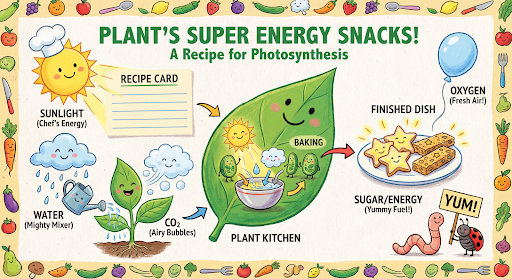
message = "Create a vibrant infographic that explains photosynthesis as if it were a recipe for a plant's favorite food. Show the 'ingredients' (sunlight, water, CO2) and the 'finished dish' (sugar/energy). The style should be like a page from a colorful kids' cookbook, suitable for a 4th grader."

response = chat.send_message(message)

for part in response.parts:
    if part.text is not None:
        print(part.text)
    elif image := part.as_image():
        image.save("photosynthesis_english.png")
        print("✅ Infographic saved as photosynthesis_english.png")

# Second message: Translate the infographic
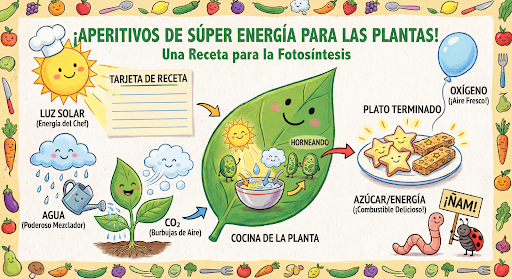
message2 = "Update this infographic to be in Spanish. Do not change any other elements of the image."

response2 = chat.send_message(
    message2,
    config=types.GenerateContentConfig(
        image_config=types.ImageConfig(
            aspect_ratio="16:9", image_size="2K"  # Use 2K resolution
        ),
    ),
)

for part in response2.parts:
    if part.text is not None:
        print(part.text)
    elif image := part.as_image():
        image.save("photosynthesis_spanish.png")
print("✅ Spanish infographic saved as photosynthesis_spanish.png")import { GoogleGenAI } from "@google/genai";
import * as fs from "node:fs";
const ai = new GoogleGenAI({
apiKey: process.env.AVALAI_API_KEY,
httpOptions: { baseURL: "https://api.avalai.ir" }
});
// Create chat session
const chat = ai.chats.create({
model: "gemini-3-pro-image",
config: {
responseModalities: ['TEXT', 'IMAGE'],
tools: [{googleSearch: {}}],
},
});
// First message
const message = "Create a vibrant infographic that explains photosynthesis as if it were a recipe for a plant's favorite food.";
let response = await chat.sendMessage({message});
for (const part of response.candidates[0].content.parts) {
if (part.text) {
console.log(part.text);
} else if (part.inlineData) {
const buffer = Buffer.from(part.inlineData.data, "base64");
fs.writeFileSync("photosynthesis_english.png", buffer);
console.log("✅ Infographic saved as photosynthesis_english.png");
}
}
// Second message - translate to Spanish with 2K resolution
const message2 = "Update this infographic to be in Spanish. Do not change any other elements.";
response = await chat.sendMessage({
message: message2,
config: {
responseModalities: ['TEXT', 'IMAGE'],
imageConfig: {
aspectRatio: '16:9',
imageSize: '2K',
},
tools: [{googleSearch: {}}],
},
});
for (const part of response.candidates[0].content.parts) {
if (part.text) {
console.log(part.text);
} else if (part.inlineData) {
const buffer = Buffer.from(part.inlineData.data, "base64");
fs.writeFileSync("photosynthesis_spanish.png", buffer);
console.log("✅ Spanish infographic saved as photosynthesis_spanish.png");
}
}Example Outputs:
| English Version | Spanish Version |
|---|---|
 |  |
Gemini 3 Pro: High-Resolution Output (Up to 4K)
Gemini 3 Pro Image Preview supports generating images up to 4K resolution:
from google import genai
from google.genai import types

client = genai.Client(
    api_key="YOUR_AVALAI_API_KEY", http_options={"base_url": "https://api.avalai.ir"}
)

response = client.models.generate_image(
    model="gemini-3-pro-image",
    prompt="A highly detailed map of a fantasy world, 4k resolution",
    config=types.GenerateImageConfig(
        aspect_ratio="16:9", image_size="4K"  # Requesting 4K resolution
    ),
)

if response.image:
    response.image.save("fantasy_map_4k.png")
print("✅ 4K Image saved as fantasy_map_4k.png")import { GoogleGenAI } from "@google/genai";
import * as fs from "node:fs";
const ai = new GoogleGenAI({
apiKey: process.env.AVALAI_API_KEY,
httpOptions: { baseURL: "https://api.avalai.ir" }
});
const model = ai.getGenerativeModel({ model: "gemini-3-pro-image" });
// Note: For pure image generation models, ensure you use the appropriate method
// or pass the config via generateContent if supported by the SDK version.
// Here is the pattern for image generation:
const result = await model.generateImage({
prompt: "A highly detailed map of a fantasy world, 4k resolution",
config: {
aspectRatio: "16:9",
imageSize: "4K",
}
});
if (result.image) {
const buffer = Buffer.from(result.image.data, "base64");
fs.writeFileSync("fantasy_map_4k.png", buffer);
console.log("✅ 4K Image saved as fantasy_map_4k.png");
}OpenAI Compatible Usage (Gemini 3 Pro)
You can also use the standard OpenAI SDK to access Gemini 3 Pro's image generation capabilities via AvalAI.
from openai import OpenAI

client = OpenAI(api_key="YOUR_AVALAI_API_KEY", base_url="https://api.avalai.ir/v1")

response = client.images.generate(
    model="gemini-3-pro-image",
    prompt="A futuristic city skyline at night with neon lights, 4k, hyper-realistic",
    size="1024x1024",  # Standard size parameter
    quality="hd",  # Hints at higher quality
    n=1,
)

print(response.data[0].url)import OpenAI from "openai";
const client = new OpenAI({
apiKey: process.env.AVALAI_API_KEY,
baseURL: "https://api.avalai.ir/v1"
});
const response = await client.images.generate({
model: "gemini-3-pro-image",
prompt: "A futuristic city skyline at night with neon lights, 4k, hyper-realistic",
size: "1024x1024",
quality: "hd",
n: 1,
});
console.log(response.data[0].url);Gemini 2.5 Flash Image (Nano Banana)
Gemini 2.5 Flash Image (previously known as Nano Banana) is a highly efficient model optimized for speed and high-quality image synthesis. It excels at following complex prompts and can be used for both generation and editing.
Advanced Generation with Aspect Ratios
Gemini 2.5 Flash Image supports various aspect ratios natively.
from google import genai
from google.genai import types

client = genai.Client(
    api_key="YOUR_AVALAI_API_KEY", http_options={"base_url": "https://api.avalai.ir"}
)

response = client.models.generate_image(
    model="gemini-2.5-flash-image",
    prompt="A cinematic wide shot of a desert landscape",
    config=types.GenerateImageConfig(
        aspect_ratio="16:9",
        person_generation="allow_adult",  # options: dont_allow, allow_adult, allow_all
        safety_filter_level="block_only_high",
    ),
)

if response.image:
response.image.save("desert_cinematic.png")import { GoogleGenAI } from "@google/genai";
import * as fs from "node:fs";
const ai = new GoogleGenAI({
apiKey: process.env.AVALAI_API_KEY,
httpOptions: { baseURL: "https://api.avalai.ir" }
});
const model = ai.getGenerativeModel({ model: "gemini-2.5-flash-image" });
const result = await model.generateImage({
prompt: "A cinematic wide shot of a desert landscape",
config: {
aspectRatio: "16:9",
personGeneration: "allow_adult",
safetyFilterLevel: "block_only_high"
}
});
if (result.image) {
const buffer = Buffer.from(result.image.data, "base64");
fs.writeFileSync("desert_cinematic.png", buffer);
}OpenAI Compatible Usage (Gemini 2.5 Flash Image)
from openai import OpenAI

client = OpenAI(api_key="YOUR_AVALAI_API_KEY", base_url="https://api.avalai.ir/v1")

response = client.images.generate(
    model="gemini-2.5-flash-image",
    prompt="A cute robot gardener watering plants, digital art style",
    size="1024x1024",
    n=1,
)

print(response.data[0].url)import OpenAI from "openai";
const client = new OpenAI({
apiKey: process.env.AVALAI_API_KEY,
baseURL: "https://api.avalai.ir/v1"
});
const response = await client.images.generate({
model: "gemini-2.5-flash-image",
prompt: "A cute robot gardener watering plants, digital art style",
size: "1024x1024",
n: 1,
});
console.log(response.data[0].url);Comparison: Gemini 3 Pro vs. Gemini 2.5 Flash Image
| Feature | Gemini 3 Pro Image Preview | Gemini 2.5 Flash Image (Nano Banana) |
|---|---|---|
| Strengths | Highest fidelity, complex prompt adherence, text rendering | Speed, efficiency, consistent styles |
| Max Resolution | Up to 4K (native upscale) | Standard high resolution |
| Ideal For | Marketing visuals, complex scenes, typography | Rapid prototyping, social media content, illustrations |
| Availability | Preview (Advanced) | Stable (Production ready) |
Best Practices for Advanced Generation
- Prompt Engineering: Both models benefit from descriptive prompts. Mention lighting, style (e.g., "oil painting", "photorealistic"), and camera angles.
- Negative Prompts: While not explicitly shown in simple examples, you can often guide the model by specifying what you don't want in the prompt description (e.g., "no blur", "no distortion").
- Aspect Ratio: Match the aspect ratio to your subject. Use
16:9for landscapes and9:16for portraits (like phone wallpapers). - Safety Settings: Adjust safety settings if your creative workflow requires it (e.g., artistic nudity or specific medical contexts), respecting the
person_generationandsafety_filter_levelparameters where applicable.
Advanced Image Editing with Gemini 2.5 Flash Image
Gemini 2.5 Flash Image excels at editing existing images based on natural language instructions. Here's how to leverage its editing capabilities.
Basic Image Editing (Native SDK)
from google import genai
from google.genai import types
from PIL import Image

client = genai.Client(
    api_key="YOUR_AVALAI_API_KEY", http_options={"base_url": "https://api.avalai.ir"}
)

# Load your image
source_image = Image.open("my_photo.jpg")

response = client.models.generate_content(
    model="gemini-2.5-flash-image",
    contents=[
        types.Part.from_image(image=source_image),
        "Change the background to a sunset beach scene while keeping the subject intact",
    ],
    config=types.GenerateContentConfig(response_modalities=["TEXT", "IMAGE"]),
)

for part in response.candidates[0].content.parts:
    if part.text:
        print(part.text)
    elif part.inline_data:
        # Save the edited image
        image_bytes = part.inline_data.data
        with open("edited_photo.png", "wb") as f:
            f.write(image_bytes)
print("✅ Edited image saved as edited_photo.png")import { GoogleGenAI } from "@google/genai";
import * as fs from "node:fs";
const ai = new GoogleGenAI({
apiKey: process.env.AVALAI_API_KEY,
httpOptions: { baseURL: "https://api.avalai.ir" }
});
const model = ai.getGenerativeModel({ model: "gemini-2.5-flash-image" });
// Read image as base64
const imageData = fs.readFileSync("my_photo.jpg").toString("base64");
const result = await model.generateContent({
contents: [{
role: "user",
parts: [
{
inlineData: {
mimeType: "image/jpeg",
data: imageData
}
},
{ text: "Change the background to a sunset beach scene while keeping the subject intact" }
]
}],
generationConfig: {
responseModalities: ["TEXT", "IMAGE"]
}
});
for (const part of result.response.candidates[0].content.parts) {
if (part.text) {
console.log(part.text);
} else if (part.inlineData) {
const buffer = Buffer.from(part.inlineData.data, "base64");
fs.writeFileSync("edited_photo.png", buffer);
console.log("✅ Edited image saved as edited_photo.png");
}
}Image Editing via OpenAI Compatible API
from openai import OpenAI
import base64

client = OpenAI(api_key="YOUR_AVALAI_API_KEY", base_url="https://api.avalai.ir/v1")

# Read and encode the image
with open("my_photo.jpg", "rb") as f:
    image_base64 = base64.b64encode(f.read()).decode("utf-8")

response = client.chat.completions.create(
    model="gemini-2.5-flash-image",
    messages=[
        {
            "role": "user",
            "content": [
                {
                    "type": "image_url",
                    "image_url": {"url": f"data:image/jpeg;base64,{image_base64}"},
                },
                {
                    "type": "text",
                    "text": "Change the background to a sunset beach scene while keeping the subject intact",
                },
            ],
        }
    ],
    modalities=["image", "text"],
)

# Access the edited image
if response.choices[0].message.images:
    image_url = response.choices[0].message.images[0]["image_url"]["url"]
print(f"Edited image URL: {image_url}")import OpenAI from "openai";
import * as fs from "node:fs";
const client = new OpenAI({
apiKey: process.env.AVALAI_API_KEY,
baseURL: "https://api.avalai.ir/v1"
});
// Read and encode the image
const imageData = fs.readFileSync("my_photo.jpg").toString("base64");
const response = await client.chat.completions.create({
model: "gemini-2.5-flash-image",
messages: [
{
role: "user",
content: [
{
type: "image_url",
image_url: {
url: `data:image/jpeg;base64,${imageData}`
}
},
{
type: "text",
text: "Change the background to a sunset beach scene while keeping the subject intact"
}
]
}
],
modalities: ["image", "text"]
});
if (response.choices[0].message.images) {
const imageUrl = response.choices[0].message.images[0].image_url.url;
console.log(`Edited image URL: ${imageUrl}`);
}Responses API version This version uses `gpt-5.5` because `gemini-2.5-flash-image` may not be enabled for `/v1/responses` in the current AvalAI model data.
Use this version when the selected model supports /v1/responses. messages moves to input, and the final text is read from response.output_text.
import os
from openai import OpenAI

client = OpenAI(
    api_key=os.environ["AVALAI_API_KEY"],
    base_url="https://api.avalai.ir/v1",
)

response = client.responses.create(
    model="gpt-5.6-luna",
    input=[
        {
            "role": "user",
            "content": [
                {"type": "input_text", "text": "Describe this image."},
                {"type": "input_image", "image_url": "https://example.com/image.png"},
            ],
        }
    ],
)

print(response.output_text)import OpenAI from "openai";
const client = new OpenAI({
apiKey: process.env.AVALAI_API_KEY,
baseURL: "https://api.avalai.ir/v1",
});
const response = await client.responses.create({
model: "gpt-5.6-luna",
input: [
{
role: "user",
content: [
{ type: "input_text", text: "Describe this image." },
{ type: "input_image", image_url: "https://example.com/image.png" },
],
},
],
});
console.log(response.output_text);curl https://api.avalai.ir/v1/responses \
-H "Content-Type: application/json" \
-H "Authorization: Bearer $AVALAI_API_KEY" \
-d '
{
"model": "gpt-5.6-luna",
"input": [
{
"role": "user",
"content": [
{
"type": "input_text",
"text": "Describe this image."
},
{
"type": "input_image",
"image_url": "https://example.com/image.png"
}
]
}
]
}'messages→input- system message →
instructionsor adeveloperitem choices[0].message.content→response.output_text- for tools and multimodal output, inspect
response.outputby itemtype.
Using Native Gemini Parameters via OpenAI SDK (extra_body)
When using the OpenAI SDK with Nano Banana models, you can pass native Gemini parameters like aspectRatio and imageSize through the extra_body parameter. This allows you to leverage Gemini-specific features while using the familiar OpenAI SDK interface.
Supported imageConfig Parameters:
| Parameter | Type | Description | Supported Values | Supported Models |
|---|---|---|---|---|
aspectRatio | string | Image aspect ratio | "1:1", "2:3", "3:2", "3:4", "4:3", "4:5", "5:4", "9:16", "16:9", "21:9" | gemini-2.5-flash-image, gemini-3-pro-image |
imageSize | string | Output image size | "1K", "2K", "4K" | Only gemini-3-pro-image |
Gemini 2.5 Flash Image (Nano Banana) with Aspect Ratio
from openai import OpenAI
import base64

client = OpenAI(api_key="YOUR_AVALAI_API_KEY", base_url="https://api.avalai.ir/v1")

# Generate image with custom aspect ratio
response = client.chat.completions.create(
    model="gemini-2.5-flash-image",
    messages=[
        {
            "role": "user",
            "content": [
                {
                    "type": "text",
                    "text": "Generate a sunset beach scene",
                },
            ],
        }
    ],
    modalities=["image", "text"],
    extra_body={"generationConfig": {"imageConfig": {"aspectRatio": "16:9"}}},
)

# Access the generated image
if response.choices[0].message.images:
    image_url = response.choices[0].message.images[0]["image_url"]["url"]
print(f"Generated image URL: {image_url}")import OpenAI from "openai";
const client = new OpenAI({
apiKey: process.env.AVALAI_API_KEY,
baseURL: "https://api.avalai.ir/v1"
});
// Generate image with custom aspect ratio
const response = await client.chat.completions.create({
model: "gemini-2.5-flash-image",
messages: [
{
role: "user",
content: [
{
type: "text",
text: "Generate a sunset beach scene"
}
]
}
],
modalities: ["image", "text"],
extra_body: {
generationConfig: {
imageConfig: {
aspectRatio: "16:9"
}
}
}
});
if (response.choices[0].message.images) {
const imageUrl = response.choices[0].message.images[0].image_url.url;
console.log(`Generated image URL: ${imageUrl}`);
}Responses API version This version uses `gpt-5.5` because `gemini-2.5-flash-image` may not be enabled for `/v1/responses` in the current AvalAI model data.
Use this version when the selected model supports /v1/responses. messages moves to input, and the final text is read from response.output_text.
import os
from openai import OpenAI

client = OpenAI(
    api_key=os.environ["AVALAI_API_KEY"],
    base_url="https://api.avalai.ir/v1",
)

response = client.responses.create(
    model="gpt-5.6-luna",
    input=[
        {
            "role": "user",
            "content": [
                {"type": "input_text", "text": "Describe this image."},
                {"type": "input_image", "image_url": "https://example.com/image.png"},
            ],
        }
    ],
)

print(response.output_text)import OpenAI from "openai";
const client = new OpenAI({
apiKey: process.env.AVALAI_API_KEY,
baseURL: "https://api.avalai.ir/v1",
});
const response = await client.responses.create({
model: "gpt-5.6-luna",
input: [
{
role: "user",
content: [
{ type: "input_text", text: "Describe this image." },
{ type: "input_image", image_url: "https://example.com/image.png" },
],
},
],
});
console.log(response.output_text);curl https://api.avalai.ir/v1/responses \
-H "Content-Type: application/json" \
-H "Authorization: Bearer $AVALAI_API_KEY" \
-d '
{
"model": "gpt-5.6-luna",
"input": [
{
"role": "user",
"content": [
{
"type": "input_text",
"text": "Describe this image."
},
{
"type": "input_image",
"image_url": "https://example.com/image.png"
}
]
}
]
}'messages→input- system message →
instructionsor adeveloperitem choices[0].message.content→response.output_text- for tools and multimodal output, inspect
response.outputby itemtype.
Gemini 3 Pro Image Preview (Nano Banana Pro) with Aspect Ratio and Image Size
from openai import OpenAI

client = OpenAI(api_key="YOUR_AVALAI_API_KEY", base_url="https://api.avalai.ir/v1")

# Generate 4K image with custom aspect ratio
response = client.chat.completions.create(
    model="gemini-3-pro-image",
    messages=[
        {
            "role": "user",
            "content": [
                {
                    "type": "text",
                    "text": "Generate a sunset beach scene",
                },
            ],
        }
    ],
    modalities=["image", "text"],
    extra_body={
        "generationConfig": {
            "imageConfig": {
                "aspectRatio": "16:9",
                "imageSize": "4k",  # Only supported by gemini-3-pro-image
            }
        }
    },
)

# Access the generated image
if response.choices[0].message.images:
    image_url = response.choices[0].message.images[0]["image_url"]["url"]
print(f"Generated 4K image URL: {image_url}")import OpenAI from "openai";
const client = new OpenAI({
apiKey: process.env.AVALAI_API_KEY,
baseURL: "https://api.avalai.ir/v1"
});
// Generate 4K image with custom aspect ratio
const response = await client.chat.completions.create({
model: "gemini-3-pro-image",
messages: [
{
role: "user",
content: [
{
type: "text",
text: "Generate a sunset beach scene"
}
]
}
],
modalities: ["image", "text"],
extra_body: {
generationConfig: {
imageConfig: {
aspectRatio: "16:9",
imageSize: "4k" // Only supported by gemini-3-pro-image
}
}
}
});
if (response.choices[0].message.images) {
const imageUrl = response.choices[0].message.images[0].image_url.url;
console.log(`Generated 4K image URL: ${imageUrl}`);
}Responses API version This version uses `gpt-5.5` because `gemini-3-pro-image` may not be enabled for `/v1/responses` in the current AvalAI model data.
Use this version when the selected model supports /v1/responses. messages moves to input, and the final text is read from response.output_text.
import os
from openai import OpenAI

client = OpenAI(
    api_key=os.environ["AVALAI_API_KEY"],
    base_url="https://api.avalai.ir/v1",
)

response = client.responses.create(
    model="gpt-5.6-luna",
    input=[
        {
            "role": "user",
            "content": [
                {"type": "input_text", "text": "Describe this image."},
                {"type": "input_image", "image_url": "https://example.com/image.png"},
            ],
        }
    ],
)

print(response.output_text)import OpenAI from "openai";
const client = new OpenAI({
apiKey: process.env.AVALAI_API_KEY,
baseURL: "https://api.avalai.ir/v1",
});
const response = await client.responses.create({
model: "gpt-5.6-luna",
input: [
{
role: "user",
content: [
{ type: "input_text", text: "Describe this image." },
{ type: "input_image", image_url: "https://example.com/image.png" },
],
},
],
});
console.log(response.output_text);curl https://api.avalai.ir/v1/responses \
-H "Content-Type: application/json" \
-H "Authorization: Bearer $AVALAI_API_KEY" \
-d '
{
"model": "gpt-5.6-luna",
"input": [
{
"role": "user",
"content": [
{
"type": "input_text",
"text": "Describe this image."
},
{
"type": "input_image",
"image_url": "https://example.com/image.png"
}
]
}
]
}'messages→input- system message →
instructionsor adeveloperitem choices[0].message.content→response.output_text- for tools and multimodal output, inspect
response.outputby itemtype.
Image Editing with Aspect Ratio
You can also use the extra_body parameters when editing images:
from openai import OpenAI
import base64

client = OpenAI(api_key="YOUR_AVALAI_API_KEY", base_url="https://api.avalai.ir/v1")

# Read and encode the image
with open("my_photo.jpg", "rb") as f:
    image_base64 = base64.b64encode(f.read()).decode("utf-8")

# Edit image with custom aspect ratio
response = client.chat.completions.create(
    model="gemini-2.5-flash-image",
    messages=[
        {
            "role": "user",
            "content": [
                {
                    "type": "image_url",
                    "image_url": {"url": f"data:image/jpeg;base64,{image_base64}"},
                },
                {
                    "type": "text",
                    "text": "Transform this image into a cinematic widescreen format with dramatic lighting",
                },
            ],
        }
    ],
    modalities=["image", "text"],
    extra_body={
        "generationConfig": {
            "imageConfig": {"aspectRatio": "21:9"}  # Ultra-wide cinematic ratio
        }
    },
)

# Access the edited image
if response.choices[0].message.images:
    image_url = response.choices[0].message.images[0]["image_url"]["url"]
print(f"Edited image URL: {image_url}")import OpenAI from "openai";
import * as fs from "node:fs";
const client = new OpenAI({
apiKey: process.env.AVALAI_API_KEY,
baseURL: "https://api.avalai.ir/v1"
});
// Read and encode the image
const imageData = fs.readFileSync("my_photo.jpg").toString("base64");
// Edit image with custom aspect ratio
const response = await client.chat.completions.create({
model: "gemini-2.5-flash-image",
messages: [
{
role: "user",
content: [
{
type: "image_url",
image_url: {
url: `data:image/jpeg;base64,${imageData}`
}
},
{
type: "text",
text: "Transform this image into a cinematic widescreen format with dramatic lighting"
}
]
}
],
modalities: ["image", "text"],
extra_body: {
generationConfig: {
imageConfig: {
aspectRatio: "21:9" // Ultra-wide cinematic ratio
}
}
}
});
if (response.choices[0].message.images) {
const imageUrl = response.choices[0].message.images[0].image_url.url;
console.log(`Edited image URL: ${imageUrl}`);
}Responses API version This version uses `gpt-5.5` because `gemini-2.5-flash-image` may not be enabled for `/v1/responses` in the current AvalAI model data.
Use this version when the selected model supports /v1/responses. messages moves to input, and the final text is read from response.output_text.
import os
from openai import OpenAI

client = OpenAI(
    api_key=os.environ["AVALAI_API_KEY"],
    base_url="https://api.avalai.ir/v1",
)

response = client.responses.create(
    model="gpt-5.6-luna",
    input=[
        {
            "role": "user",
            "content": [
                {"type": "input_text", "text": "Describe this image."},
                {"type": "input_image", "image_url": "https://example.com/image.png"},
            ],
        }
    ],
)

print(response.output_text)import OpenAI from "openai";
const client = new OpenAI({
apiKey: process.env.AVALAI_API_KEY,
baseURL: "https://api.avalai.ir/v1",
});
const response = await client.responses.create({
model: "gpt-5.6-luna",
input: [
{
role: "user",
content: [
{ type: "input_text", text: "Describe this image." },
{ type: "input_image", image_url: "https://example.com/image.png" },
],
},
],
});
console.log(response.output_text);curl https://api.avalai.ir/v1/responses \
-H "Content-Type: application/json" \
-H "Authorization: Bearer $AVALAI_API_KEY" \
-d '
{
"model": "gpt-5.6-luna",
"input": [
{
"role": "user",
"content": [
{
"type": "input_text",
"text": "Describe this image."
},
{
"type": "input_image",
"image_url": "https://example.com/image.png"
}
]
}
]
}'messages→input- system message →
instructionsor adeveloperitem choices[0].message.content→response.output_text- for tools and multimodal output, inspect
response.outputby itemtype.
For more information about provider-specific parameters, see the Provider-Specific Parameters Guide.
Multi-Turn Image Conversations
Both Gemini 3 Pro and Gemini 2.5 Flash Image support iterative image refinement through conversation. This is powerful for creative workflows.
Iterative Refinement Example
from google import genai
from google.genai import types

client = genai.Client(
    api_key="YOUR_AVALAI_API_KEY", http_options={"base_url": "https://api.avalai.ir"}
)

chat = client.chats.create(
    model="gemini-2.5-flash-image",
    config=types.GenerateContentConfig(response_modalities=["TEXT", "IMAGE"]),
)

# First turn: Generate initial concept
response1 = chat.send_message(
    "Create a logo for a coffee shop called 'Morning Brew'. Use warm colors and a minimalist style."
)

for part in response1.parts:
    if part.text:
        print("Model:", part.text)
    elif image := part.as_image():
        image.save("logo_v1.png")
        print("✅ Logo v1 saved")

# Second turn: Refine based on feedback
response2 = chat.send_message(
    "I like it! Can you make the text more prominent and add a small steam effect above the cup?"
)

for part in response2.parts:
    if part.text:
        print("Model:", part.text)
    elif image := part.as_image():
        image.save("logo_v2.png")
        print("✅ Logo v2 saved")

# Third turn: Final adjustments
response3 = chat.send_message(
    "Perfect! Now create a version with a dark background for use on light surfaces."
)

for part in response3.parts:
    if part.text:
        print("Model:", part.text)
    elif image := part.as_image():
        image.save("logo_v3_dark.png")
print("✅ Logo v3 (dark) saved")import { GoogleGenAI } from "@google/genai";
import * as fs from "node:fs";
const ai = new GoogleGenAI({
apiKey: process.env.AVALAI_API_KEY,
httpOptions: { baseURL: "https://api.avalai.ir" }
});
const chat = ai.chats.create({
model: "gemini-2.5-flash-image",
config: {
responseModalities: ["TEXT", "IMAGE"]
}
});
// First turn
let response = await chat.sendMessage({
message: "Create a logo for a coffee shop called 'Morning Brew'. Use warm colors and a minimalist style."
});
for (const part of response.candidates[0].content.parts) {
if (part.text) console.log("Model:", part.text);
else if (part.inlineData) {
fs.writeFileSync("logo_v1.png", Buffer.from(part.inlineData.data, "base64"));
console.log("✅ Logo v1 saved");
}
}
// Second turn
response = await chat.sendMessage({
message: "I like it! Can you make the text more prominent and add a small steam effect above the cup?"
});
for (const part of response.candidates[0].content.parts) {
if (part.text) console.log("Model:", part.text);
else if (part.inlineData) {
fs.writeFileSync("logo_v2.png", Buffer.from(part.inlineData.data, "base64"));
console.log("✅ Logo v2 saved");
}
}
// Third turn
response = await chat.sendMessage({
message: "Perfect! Now create a version with a dark background for use on light surfaces."
});
for (const part of response.candidates[0].content.parts) {
if (part.text) console.log("Model:", part.text);
else if (part.inlineData) {
fs.writeFileSync("logo_v3_dark.png", Buffer.from(part.inlineData.data, "base64"));
console.log("✅ Logo v3 (dark) saved");
}
}Error Handling and Safety
When working with image generation, proper error handling is essential:
from google import genai
from google.genai import types
from google.api_core import exceptions

client = genai.Client(
    api_key="YOUR_AVALAI_API_KEY", http_options={"base_url": "https://api.avalai.ir"}
)

try:
    response = client.models.generate_image(
        model="gemini-2.5-flash-image",
        prompt="Your prompt here",
        config=types.GenerateImageConfig(safety_filter_level="block_medium_and_above"),
    )

    if response.image:
        response.image.save("output.png")
    else:
        # Check for safety blocks
        if response.prompt_feedback:
            print(f"Prompt blocked: {response.prompt_feedback}")
        else:
            print("No image generated. Try a different prompt.")

except exceptions.InvalidArgument as e:
    print(f"Invalid request: {e}")
except exceptions.ResourceExhausted as e:
    print(f"Rate limited. Please wait and retry: {e}")
except Exception as e:
print(f"An error occurred: {e}")import { GoogleGenAI } from "@google/genai";
import * as fs from "node:fs";
const ai = new GoogleGenAI({
apiKey: process.env.AVALAI_API_KEY,
httpOptions: { baseURL: "https://api.avalai.ir" }
});
try {
const model = ai.getGenerativeModel({ model: "gemini-2.5-flash-image" });
const result = await model.generateImage({
prompt: "Your prompt here",
config: {
safetyFilterLevel: "block_medium_and_above"
}
});
if (result.image) {
fs.writeFileSync("output.png", Buffer.from(result.image.data, "base64"));
} else if (result.promptFeedback) {
console.log(`Prompt blocked: ${JSON.stringify(result.promptFeedback)}`);
} else {
console.log("No image generated. Try a different prompt.");
}
} catch (error) {
if (error.status === 400) {
console.log(`Invalid request: ${error.message}`);
} else if (error.status === 429) {
console.log(`Rate limited. Please wait and retry.`);
} else {
console.log(`An error occurred: ${error.message}`);
}
}Conclusion
AvalAI provides seamless access to Google's most advanced image generation models:
- Gemini 3 Pro Image Preview: For the highest quality outputs, complex scenes, and up to 4K resolution
- Gemini 2.5 Flash Image (Nano Banana): For fast, production-ready image generation and editing
Both models support:
- Native Google AI SDK (v1beta endpoint) with full feature access
- OpenAI-compatible API for easy integration with existing codebases
- Multi-turn conversations for iterative refinement
- Advanced safety controls and aspect ratio configuration
Next Steps
- Explore Image Editing with Stability AI for specialized editing workflows
- Learn about Video Generation with Veo for motion content
- Check the Models Page for the complete list of available models and their capabilities
For questions or support, contact support@avalai.ir