
Add an email address or phone number to your account
AvalAI Chat · Last updated 20 November 2026
Goal
If your account only has an email address, add a phone number so you can sign in with your number too. If it only has a phone number, you can add an email address. Two ways to sign in help when one is out of reach.
Before you start
Sign in to your existing account. Make sure you can access the email address or phone number you’re adding.
Steps
Open the “Settings” menu.
Select “Settings.”
Open your account settings.
Select “Add Phone,” the + beside your phone number. If you’re adding an email address, select “Add Email” in the email row.
Enter your phone number or email address in the field.
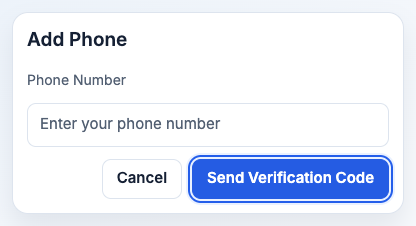
Illustration based on the development interface.
Select “Send Verification Code.”
Enter the six-digit code.
Select “Verify Phone” or “Verify Email,” according to the contact you’re adding.
What you should see
The new contact appears in your account settings. The next time you sign in, you can use it as another way into the account.
Common problems
- I can’t see the add button. It appears beside a row when that contact method is empty.
- The contact is already attached to another account. Check that you signed into the account you meant to use. Ask Support for help accessing the other account.
- The code expired. Once the timer finishes, request a new code and enter the one you just received.