
Edit your profile and sign out
AvalAI Chat · Last updated 20 November 2026
Goal
Change your name or profile picture. If you’re using a school computer or shared device, sign out when you’re done so the next person can’t see your conversations.
Before you start
Sign in. Before signing out, keep important draft text somewhere safe.
Steps
Edit your name
Open the “Settings” menu.
Select “Settings.”
Open your account settings.
Select “Edit” in the “Name” row.
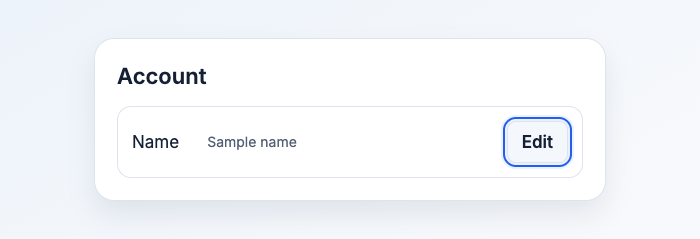
Illustration based on the development interface.
Enter the name you want to display.
Select the “Save” check mark.
To change your picture, open “General” in “Settings.” The upload option is in the “Profile Picture” row.
Sign out
- Open the “Settings” menu.
- Select “Logout.”
What you should see
Once you save, the new name appears in your account settings. After you sign out, the sign-in button returns to the Chat screen.
Common problems
- I see my email or phone where I expected a name. You may be looking at the username row. Find “Name” to edit the name you display.
- I closed a tab and I’m still signed in. Open Chat again and select “Logout.”