
Set or change your password
AvalAI Chat · Last updated 20 November 2026
Goal
If you’ve always signed in with a code, you can set a password for your account. Use the same path if you’ve forgotten your password or want to replace it.
Before you start
Have access to an email address or phone number attached to the account. AvalAI uses it to verify that the account belongs to you.
Steps
Open the “Settings” menu in Chat.
Select “Settings” in the menu.
Open your account settings.
Select “Reset Password.”
If you’re signed out, choose “Forgot your password?” on the password screen to reach the same page.
Enter the account’s email address or phone number in the identifier field.
Select “Reset Password.”
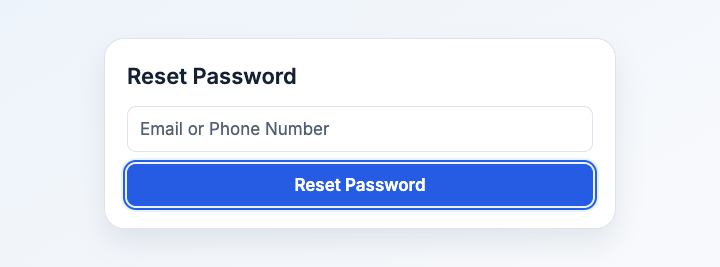
Illustration based on the development interface.
Enter the code you receive.
Type a new password in “New Password.” Choose one you don’t use for another account.
Type it again in “Repeat The New Password.”
Select “Change Password.”
What you should see
After the update succeeds, you can sign in again with the new password.
Common problems
- “Reset Password” is unavailable. Check the email format or recheck your phone number.
- The code expired. When the timer finishes, request a new code and use the most recent one.
- “Change Password” stays disabled. Check that both password fields match and read the guidance under the password field.
- You can’t access the account’s contact method. If you’re still signed in on another device and see an option to add a contact, add an email address or phone number. Otherwise, contact support.