
Choose a model in AvalAI Chat
AvalAI Chat · Last updated 20 November 2026
Goal
A model is the AI system that reads your request and writes a response. Start with a text model for language practice or a short summary. If you want to ask about a photo of a chart, choose a model that can read images too.
Before you start
Open AvalAI Chat. Sign in to see the options your account can use. Choosing a model gets it ready for your next message. Cost and usage limits depend on the model and your account.
Steps
Click the model name beside the message box. For example, you might see “GPT-6 Luna.” The button shows the model that is currently selected.
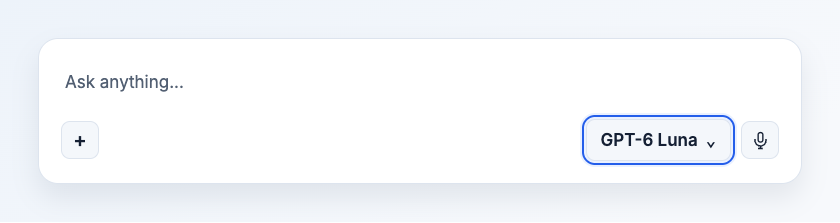
Illustration based on the development interface.
On desktop, select “Explore Models” to open the searchable list. On a phone, tapping the model name opens that screen directly. Continue with the next step.
Type a model name in “Search models...”. If you are unsure which model to try, the “Free” filter shows free options. The “Vision” filter helps you find models that can read images.
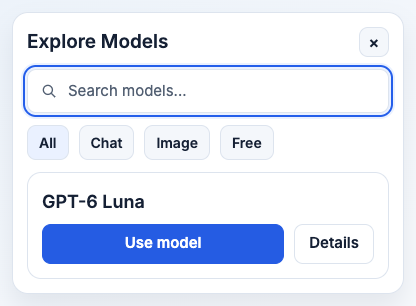
Illustration based on the development interface.
Select “Use model” on the model’s card. If you see the model you want in the short desktop list, you can select its name there.
What you should see
The new model name appears beside the message box. You can use it for your next question. For example, try “Write three short practice questions about this lesson.”
Common problems
- I can’t find “Explore Models” in the short list. Open “Settings” at the top of the screen. “Explore Models” is also available in that menu.
- The model asks me to upgrade. The card requires Plus. To continue with your current access, look for a card with a “Use model” button.
- I can’t find a model. Search for the full model name. If a filter is active, select “All” in that filter row to broaden the search.