
Add a file to a conversation
AvalAI Chat · Last updated 20 November 2026
Goal
Send a file with your message so the model, the AI that answers you, can work with its contents. For example, send a picture of a chart from class and ask what it means.
Before you start
Sign in and choose a file you have permission to upload. For pictures, check the “Vision” filter when choosing a model.
Steps
Select +, the “Add files and tools” button beside the message box.
Select “Upload a new file.”
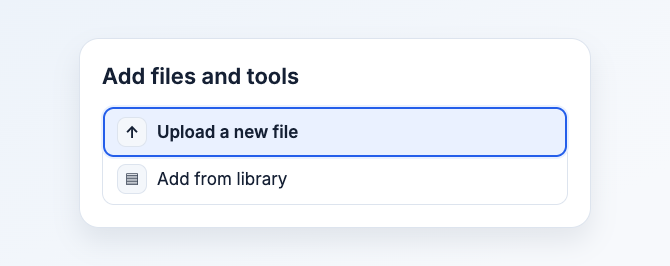
Illustration based on the development interface.
Choose the file from your device.
Wait for the file to finish preparing.
In the message box, write “What does this chart show?”
Select “Send message.”
Use a file you uploaded earlier
- Open “Add files and tools.”
- Select “Add from library.”
- Type the file name in “Search files…”.
- Select the file from the list.
What you should see
You’ll see the file name beside the message before sending. After you send it, compare the reply with the file. If the model misreads a title or number, point to the specific part in a follow-up message.
Common problems
- Upload is unavailable. Check that you’re signed in and that your model can work with the file type.
- “Files are not ready to send.” Wait a moment. If the status stays the same, use the status check when it appears or remove the attachment from this message and add it again.
- Web Search is unavailable after adding a file. Start a new conversation without a file to search the web.