
Credit, payments, and invoices
AvalAI Developer Platform · Last updated 20 November 2026
Goal
Check remaining credit before you use the API. If you’ve paid, look up the payment status. Use the invoices area when you need the payment document.
Before you start
Sign in. If you work with a team, check that you’re viewing the right account or project.
Steps
Check remaining credit
- Open “billing” from the Platform menu.
- Select “credit.”
- Read the remaining balance. This is available for API requests made against that account.
Check a payment
- Select “history” under “billing.”
- Find the payment in “Payment History.”
- Read the “Status” for that payment.
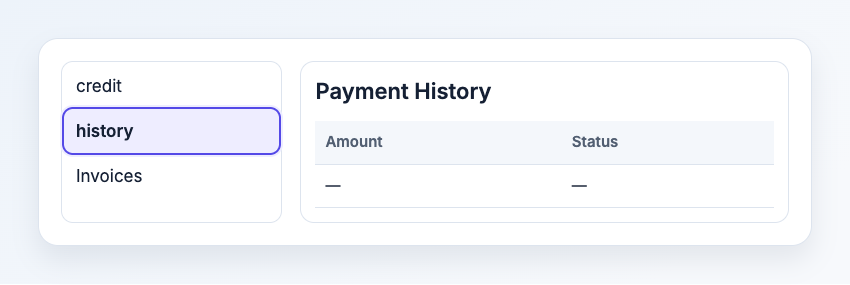
Illustration based on the development interface.
Find an invoice
- Open “Invoices” under “billing.”
- Find the invoice for your payment.
- Select the document option when it appears.
What you should see
Your balance is in “credit.” “Payment History” shows the outcome of deposits. “Invoices” shows documents that are ready. For the cost of requests, open “Usages”.
Common problems
- I want to add credit. Open the credit page and start the top-up. Check the amount and destination account before confirming a payment.
- I paid, but the balance hasn’t changed. Check the status in “Payment History.” Follow up there until the outcome is clear.
- I can’t find an invoice. Check the account and payment. If the document is still being prepared, check again later or ask Support for help.