
Chat settings
AvalAI Chat · Last updated 20 November 2026
Goal
Choose a menu language you’re comfortable reading. Try dark mode if you’re working in a dim room.
Before you start
Open AvalAI Chat. Sign in to see every settings section.
Steps
- Open the “Settings” menu.
- Select “Settings.”
- Select “General.”
Light or dark appearance
In the “Theme” row, select the dark option. Choose the light option to switch back, or use the automatic option to follow your device’s appearance.
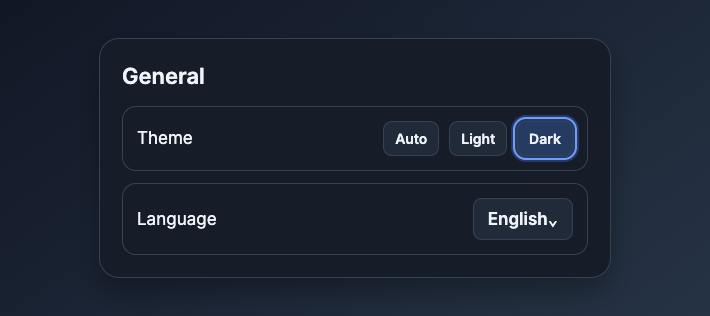
Illustration based on the development interface.
Menu language
- Open “Language” in “General.”
- Select “English.”
What you should see
The background changes when you switch the theme. The menus switch to English when you choose English. Use the alignment controls beside the message box to change the direction of your writing there.
Common problems
- The theme keeps changing with my device. The automatic option follows your device. Choose light or dark to keep one appearance.
- The menus changed language, but my previous messages didn’t. To get a reply in a particular language, ask for it in your next message.
- I’m looking for account information. Open the account tab in the same settings window.