
Developer Platform questions and troubleshooting
AvalAI Developer Platform · Last updated 20 November 2026
Goal
If a page won’t open or your app can’t get a response from AvalAI, use a few checks to narrow down the problem.
Before you start
Sign in. Note the error message or number. Remove API keys and payment information from any text or image you share.
Steps
- Read the page name or error number.
- Find the situation below that matches it.
- Follow the corresponding check.
Common problems
The Platform asks me to sign in
Select “Login / Register” to see keys, usage, or credit. For public areas of the Platform, select “Continue as Guest” in the welcome dialog.
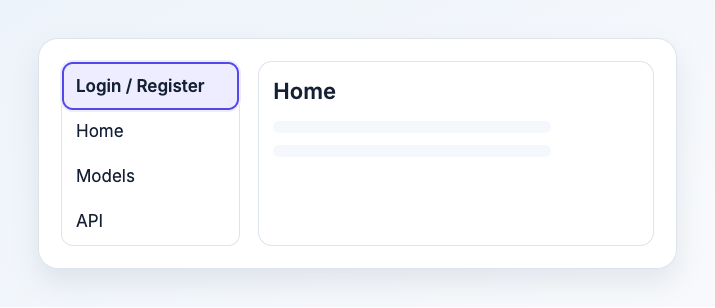
Illustration based on the development interface.
My app reports error 401
Check that the app uses the AvalAI key for the account or project you intended. If you just created the key, give it a moment to become ready. See API Quick Start for how to put the key in your app.
My app reports error 429
Your requests arrived too quickly or exceeded a usage limit. Wait a moment and space out your requests. The “limits” page shows limits for your account and models.
I can’t find a cost or payment
See “Usages” for request costs. See “Payment History” for an amount you paid. Check the account or project and time period on each page.
A project key is unavailable
Check the project name. If your work belongs to that project, ask an administrator to check your access. For your own account or project, open the API key guide.
What you should see
You can find the right page or identify the error that needs follow-up. If it continues, open the support menu and create a ticket with the step and error number.