
Find and manage conversations
AvalAI Chat · Last updated 20 November 2026
Goal
Your history is the list of past conversations. A name like “Science exam practice” makes a chat easier to find later. Pin a chat you want to mark for frequent use.
Before you start
Sign in and have at least one saved conversation.
Steps
Find a chat
- Open the chat sidebar. On desktop, use the handle on the left edge if the sidebar is closed. On a phone, use “Open navigation menu.”
- Select “Search in conversations.”
- Type part of the chat’s name in the search box, such as “science.”
- Select the conversation in the results.
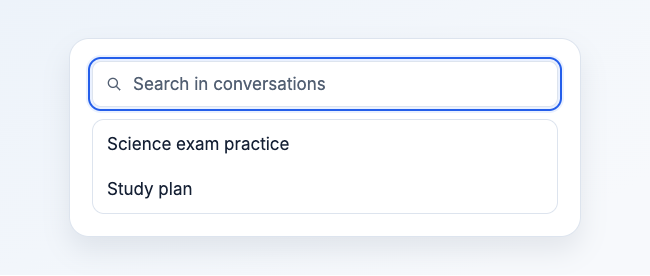
Illustration based on the development interface.
Rename a chat
- Select “Settings” beside the chat. On desktop, hover over its row to reveal the controls.
- Type the new name in “Title.”
- Select “Save.”
Pin a chat
- Select “Enable multi-select” above the list.
- Select the chat.
- Select “More Actions.”
- Select “Pin.”
- If selection mode stays open, choose “Exit Selection Mode.”
Delete a chat
- Select “Settings” beside the chat.
- Select “Delete” in the “Delete conversation” row.
- Read the confirmation.
- Select “Delete” in the confirmation to remove the chat. Select “Never Mind” to keep it.
What you should see
The new title and pin icon appear beside the relevant chat in your history. After you confirm deletion, the conversation disappears from the list.
Common problems
- I can’t find anything. Try a shorter phrase. Clear any active filter, such as favorites.
- “More Actions” is disabled. Select a conversation after turning on multi-select.
- I’m looking for a sentence inside a chat. Open the conversation and use its own search control.