
Find your way around the Developer Platform dashboard
AvalAI Developer Platform · Last updated 20 November 2026
Goal
The dashboard is the first screen in the Platform. It appears as “Home” in the menu. From here, you can check available credit, usage, and other areas.
Before you start
Open the Developer Platform. Sign in to see your account information.
Steps
Select “Home” in the menu.
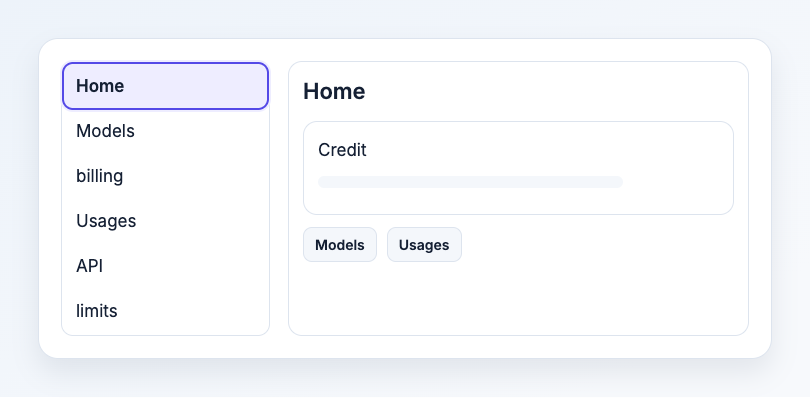
Illustration based on the development interface.
Check the account’s credit area to see what’s available.
Open the menu item for what you want to do next.
| To… | Open |
|---|---|
| See models and their prices | “Models” |
| Check usage from past requests | “Usages” |
| Check credit, payments, or invoices | “billing” |
| Manage the key your app uses to connect to AvalAI | “API” |
What you should see
You can reach the right screen from “Home.” For example, open “Usages” to look for what you spent last week.
Common problems
- The menu is collapsed. Use the menu control at the top of the page to see the section names.
- The dashboard asks me to sign in. Sign in to see account-specific credit information.
- I can’t see the balance or usage I expected. If the screen shows an account or project selection, check that it matches what you want to see.