
Check usage and cost
AvalAI Developer Platform · Last updated 20 November 2026
Goal
In “Usages,” see how many requests your app sent to AvalAI and what those requests cost. For example, if you have separate keys for two apps, choose one key to see the usage for that app.
Before you start
Sign in. If you haven’t sent any requests yet, you can still find the filters and learn your way around the page.
Steps
Open “Usages” in the Platform menu.
Select “overview.”
Choose the time period you want. For example, select the days when you tried your study app.
To check one app, select its key in the API key filter.
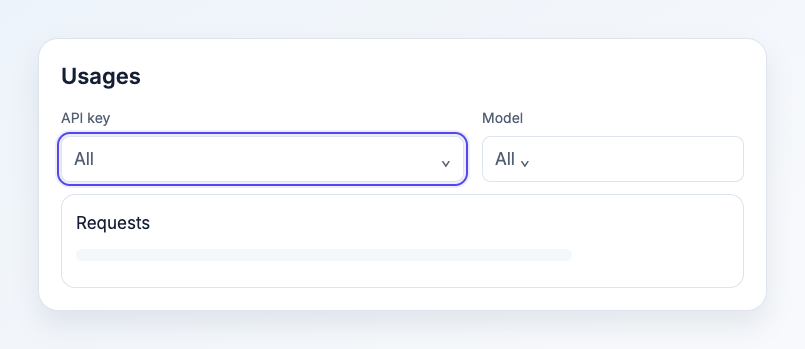
Illustration based on the development interface.
To check one model, select it in the Model filter.
Read the request count and cost for the selected period.
What you should see
The totals and charts match your chosen period and filters. Open “reports” from “Usages” to find the reports area.
Common problems
- I don’t see usage. Try a wider date range and clear the key or model filter. If you haven’t made a request, there’s no usage to show yet.
- A recent request is missing. Reporting may take a moment. Wait briefly and select “Refresh.”
- I see usage for a different account or project. Check the selected account or project and switch to the one you need.
- I’m looking for my remaining credit. Billing shows credit, payments, and invoices.