
Use Web Search and plugins
AvalAI Chat · Last updated 20 November 2026
Goal
A plugin is a tool that gives Chat an extra capability. “Web Search” can help you find sources about a recent topic. For a summary of text you’ve already pasted, you can use Chat on its own.
Before you start
Sign in and start a new chat without a file. Some tools require Plus.
Steps
- Select +, the “Add files and tools” button.
- Select “Web Search” to look for sources on the internet.
- Check for “Web Search” beside the message box. Its name indicates it’s active for the next message.
- In the message box, write “Find a few sources about recycling paper.”
- Select “Send message.”
Take a short tour of the tools menu
Step 1. Find the files and tools menu
The + beside the message box opens “Add files and tools.”
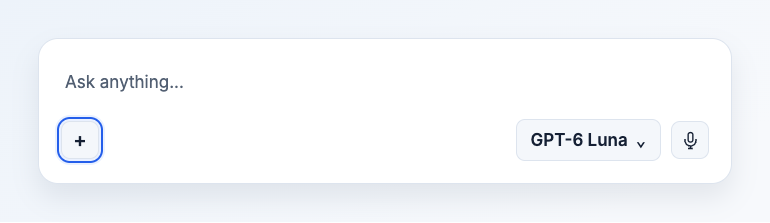
Illustration based on the development interface.
Step 2. Open the plugin list
Select “Plugins.” You’ll see the options available to you.
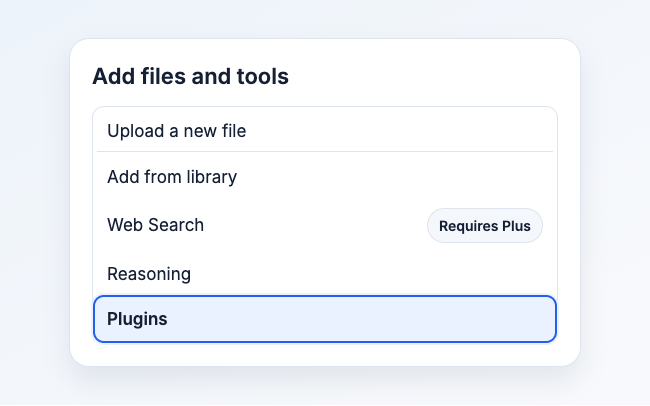
Illustration based on the development interface.
Step 3. Turn off the selected tool
Select the close icon beside the tool name near the message box. The name disappears when the tool is off.
What you should see
The selected tool appears beside the message box. If a web search reply includes a source, check its link and date. For a class assignment, open the source and read the relevant passage yourself.
Common problems
- I see a lock or “Requires Plus.” This tool depends on your plan. You can keep working with the tools available to you.
- The page asks for a new chat without files. Start a new chat and choose “Web Search” or the plugin there.
- I can’t find a plugin. Check your model and account access. The options can vary with both.