
Create and keep an API key
AvalAI Developer Platform · Last updated 20 November 2026
Goal
An API key is a private string. An app sends it with a request so AvalAI knows which account or project it comes from. For example, you can name a key for a study app “Lesson practice.”
Before you start
Sign in to AvalAI. Decide whether the app should use your own account or a project you work on with others.
Steps
Create a key for your personal account
- Open “API” from the Platform menu.
- If the project key page opens, choose “Personal organization API keys.”
- Select “Create secret key.”
- Type a name such as “Lesson practice” in “Name.” A name is optional and helps you recognize the key later.
- Select “Create secret key” in the form.
- Use the copy button beside the key.
- Save it somewhere private, such as a password manager, before closing the window.
- Select “close” to return to the list.
Create a key for a project
- Check the active project on the API key page.
- Open the project management link if you need a different project.
- Enter a key name for the correct project.
- Select “Create project key” if available and you have permission to create one.
- Save the key somewhere private before closing the window.
Disable a personal key
If you no longer need a key, you can disable it. AvalAI will reject requests from any app that still uses that key.
- In the personal key list, select “Edit” beside the key you want to disable.
- Turn the “Status” switch off.
- Select “Save settings” to apply the change.
- Select the “close” button.
- Check that the key shows “Disabled” in the list.
Take a short tour of the keys screen
Step 1. Find API in the menu
Select “API” to open the key page.
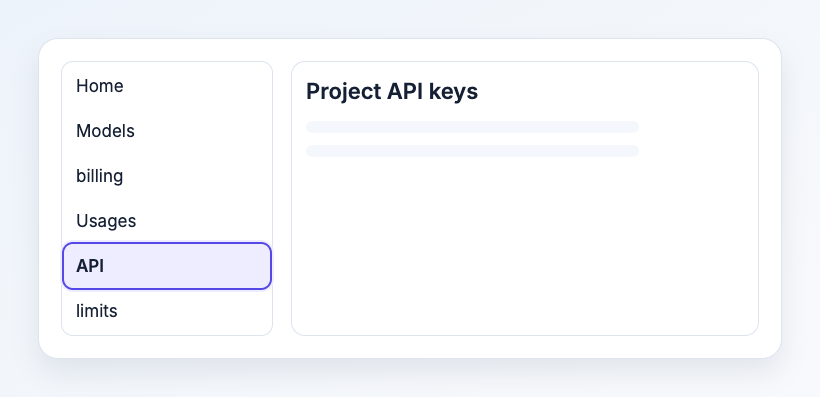
Illustration based on the development interface.
Step 2. Check the account or project
Read the page title. If you want to use your own account’s credit and the project page is open, choose “Personal organization API keys.”
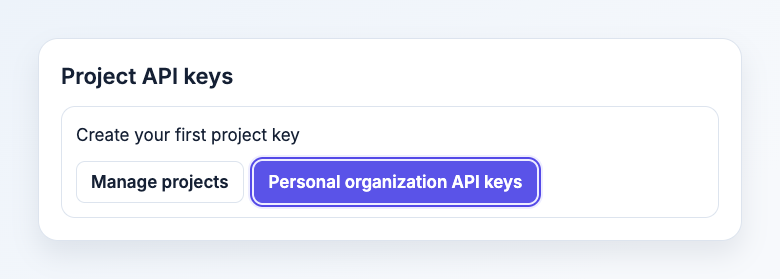
Illustration based on the development interface.
Step 3. Open the key creation form
On the personal key page, select “Create secret key.” You can give the key a name.
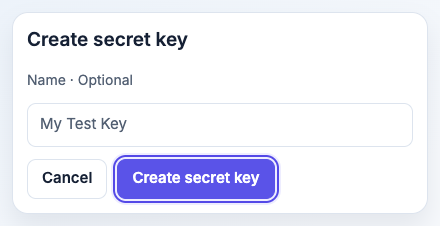
Illustration based on the development interface.
What you should see
A new key is shown once. Its name stays in the list so you can manage it later. Keep the key out of chats, images, and public code.
Common problems
- “Create project key” is unavailable. Check the selected project and your access. Ask a project administrator if the key needs to belong to that project.
- I closed the window before saving the key. Create a replacement if needed. Check your key list and disable any unused key you have permission to manage.
- I created a key and requests still fail. Give the key a moment to become ready. Then open Developer Platform troubleshooting.