
Chat questions and troubleshooting
AvalAI Chat · Last updated 20 November 2026
Goal
If a message, file, or conversation isn’t behaving as expected, check what happened before you start again.
Before you start
Keep a copy of your message somewhere safe. If you send an image to Support, remove account information and private conversation content first.
Steps
- Check the status beside the message box.
- Read the error if you see one.
- Find the matching case below.
Common problems
My message won’t send or I don’t see a reply
Check whether your text is still in the box or already in the conversation. If it is still sending, wait a moment. If an error appears, check your connection. Once you know what happened to the first message, try again if needed.
A model is locked
An upgrade prompt means the model requires Plus access. In “Explore Models,” choose “Free” to find an option with a “Use model” button.
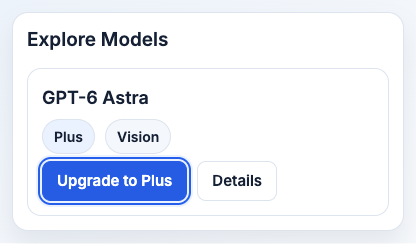
Illustration based on the development interface.
“Files are not ready to send”
Wait for preparation to finish. If the message stays, check the file’s status again. If the question works without the file, remove it from the current message and continue. The attachment guide shows the upload path.
“Could not refresh history. Try again.”
Check that you’re using the account where you created the chat. After checking your connection, open the list again and search your history.
What you should see
The send button or conversation becomes available again, or you can tell Support which model you used and share the exact error text.