
Get started with the AvalAI Developer Platform
AvalAI Developer Platform · Last updated 20 November 2026
Goal
Open the Developer Platform when you want your own app or website to use AvalAI. The API is how an app talks to AvalAI. For example, a study app could send lesson notes and get practice questions back. To ask a question directly in your browser, open the AvalAI Chat guides.
Before you start
You can explore the Platform without writing code. Sign in to AvalAI to see account information or create a key.
Steps
Open the AvalAI Developer Platform.
If you’re in Chat, find “Developer Platform” in the “Settings” menu. If the welcome window appears, choose “Continue as Guest” to see the public areas.
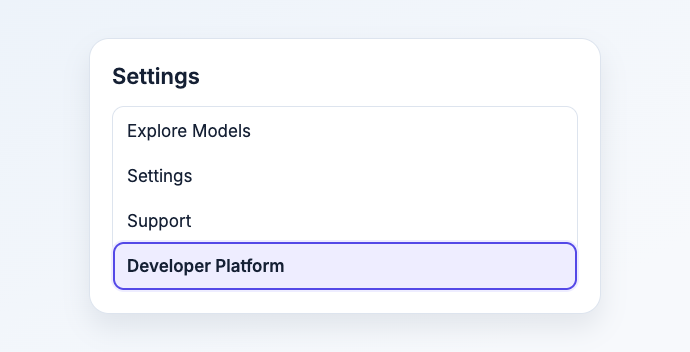
Illustration based on the development interface.
Select “Home” in the Platform menu.
Open “Models” to check the AI options and their prices.
Open the API key guide. A key is a private string that lets your app identify its account or project to AvalAI.
When your account, model, and key are ready, open API Quick Start for the first request. A request can use credit.
What you should see
You know where to find models, where to create a key, and where to check your balance before sending a request.
Common problems
- I’m in AvalAI Chat and can’t see the API key menu. Choose “Developer Platform” in the Chat settings menu.
- I can’t see my credit. Sign in and check your dashboard.
- I only want to talk to an AI right now. Start your first chat.